|
|
| 
|
|
Ableton Live Sampler
(Live Suite only, not
Intro or Standard)
Magnus Choir EXS24 MkII
Sample Library
The MIDI Tab
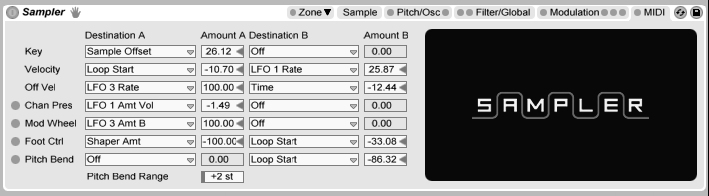
The MIDI tab’s parameters turn Sampler into a dynamic
performance instrument. The MIDI controllers Key, Velocity,
Release Velocity, Aftertouch, Modulation Wheel, Foot Controller
and Pitch Bend can be mapped to two destinations each, with
varying degrees of influence. For example, if we set Velocity’s
Destination A to Loop Length, and its Amount A to 100, high
velocities will result in long loop lengths, while low
velocities will create shorter ones.
Ableton Sampler (Live Suite
only, not Intro or Standard): Sampler is Ableton's advanced
sampling instrument. It's extremely versatile, combining
traditional sampling features with advanced sound design and
synthesis. Sampler can handle any kind of multi-gigabyte
instrument library you care to name--including AKAI S1000,
S3000, GigaStudio, EXS, SoundFont and (non-encrypted) Kontakt.
But the fun really starts when you go in deep and start
sound-shaping--Sampler gives you intuitive control over every
detail of your sound. Be prepared to create vibrant and complex
sounds from even the most basic audio source material.
Importing Third-Party Multisamples
(i.e. Magnus Choir EXS24 Sample Library Set)
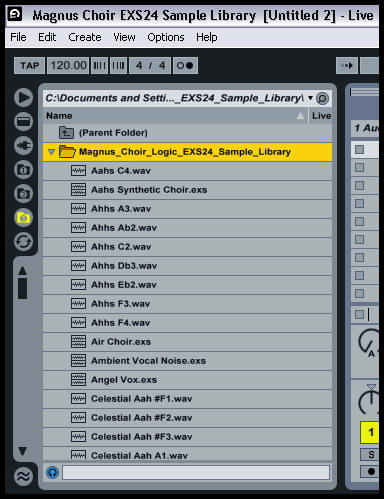
Sampler can
use multisamples created by a number of other software and
hardware samplers.
-
To import a third-party multisample,
navigate to the file in Live‘s browser and drag it into
a Live Set. This will import it into your User Library.
-
Importing will create new Sampler
presets, which you can find in the browser under User
Library/Sampler/Imports.
-
Note that some multisample files will be
converted to Instrument Rack presets that contain
several Sampler instances used to emulate the original
more accurately.
-
For all multisample formats except Apple
EXS24/GarageBand and Kontakt, Live will import the
actual audio data and create new samples. This means the
new Sampler presets will work regardless of whether the
original multisample file is still available.
-
To import Apple EXS24/GarageBand and
Kontakt multisamples, Live will create new Sampler
presets that reference the original WAV or AIF files.
This means that removing the original WAV or AIF files
will render the new Sampler presets useless. Live‘s File
Manager offers the option to collect and save these
external samples.
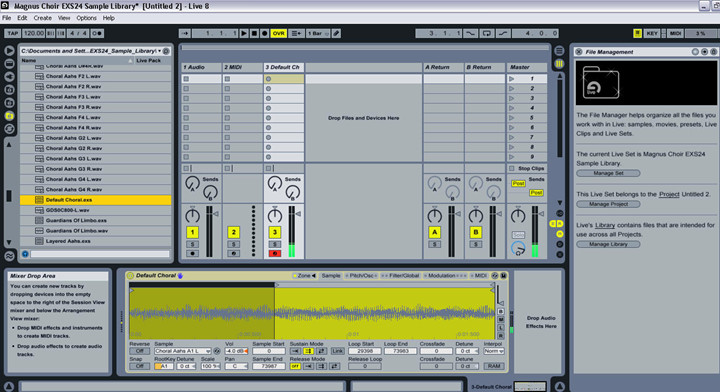
Click Image To Enlarge Live Sampler just imports the exs24
patch file and simply references the samples...
Collecting External Files
To prevent a
Live Set from containing broken file references, Live
provides the option of collecting (i.e., copying) them into
the Set’s project folder. This is accomplished via the File
Manager:
-
Choose the
Manage Files command from the File menu
-
Click the
Manage Set button
-
Unfold the
triangular-shaped fold button in the External Files
section.
Options for
Collecting External Files.
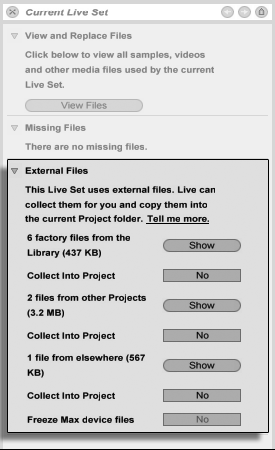
Separated by
location (other Projects, the User Library, installed by
factory Packs, and elsewhere — sample collections from
external drives, for example), the File Manager provides:
-
A file
count and the associated disk space used;
-
A Show
button that will list the files in the browser;
-
A Yes/No
toggle for engaging or disengaging collection.
Note: Make sure
to confirm your choices by clicking the File Manager’s
Collect and Save button!
The File menu’s Collect All and Save command is a shortcut
that collects and saves all external files referenced by the
current Set, including those from Live’s Core Library or
other installed Packs. Note that this can cause a lot of
copying, especially if your Live Set uses large multisample
collections!

The File Manager’s Collect and
Save Button.
| | |