Logic Pro:
Using Audio Units Plug-ins
from Other Manufacturers (Syntheway)
1.- Open Logic Pro X
and create a New Project.
Click the Add Tracks + button located
above the track headers to open the New Tracks dialog (When opening
a new empty project, the New
Tracks dialog will
appear automatically).

2.- The New Tracks dialog will
prompt you to choose a type of track. Select Software Instrument and
click Create.

3.- A new software
instrument track will appear in the Track area. To load
a Syntheway plug-in, make sure the Inspector is shown
and that the Logic Library is hidden. To do so, click on
their respective icons in the Control Bar to the
upper-left side of the Main window. The Library symbol
should be greyed out and the Inspector symbol
highlighted. In the Inspector, you
will now see the software instrument track's channel
strip.

4.- In the software
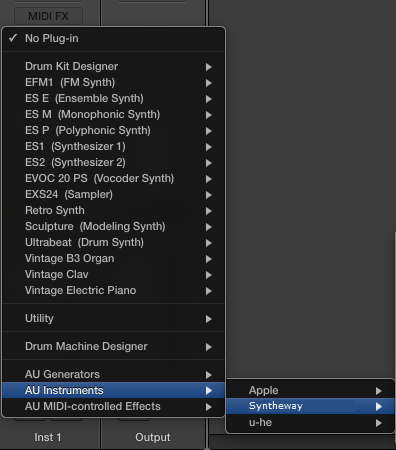
instrument track's channel strip, click the Instrument slot.

5.- Browse through the
drop-down software instruments menu and select the Audio
Unit from the Syntheway menu
After loading the plug-in, its interface will open
automatically. If you wish to open it again after
closing its window, click on the plug-in name in the
channel strip, in the Syntheway Plugin.