Deskew Technologies Gig Performer
Installing Syntheway VST, VST3 and Audio
Units Plugins

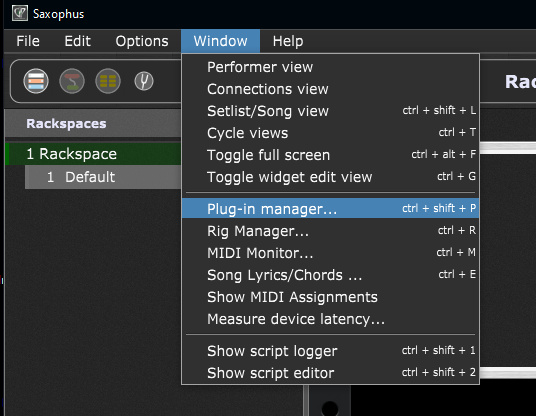
Go to the Gig Performer -> Window
menu -> Plug-in manager... (Ctrl + Shift + P)
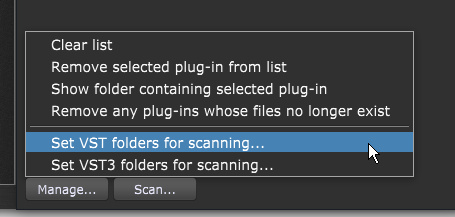
Go to the Manage Tab -> Select
Set VST/VST3/AU folder for scanning option (Select your proper VST3
folder/directory where Saxophus is placed (Saxophus.vst3 +
Saxophus.instruments folder).
Select the Scan button option and
try each one of 3 options available if still
the Syntheway VST / VST3 / Audio Unit Plugin
does not appears (scan for new updated plugin, rescan
failed plugins and rescan all plugins).
Once propped scanned by GP3, you will see
the
Syntheway VST / VST3 / Audio Unit Plugin on the list of VST / VST3 / AU available.
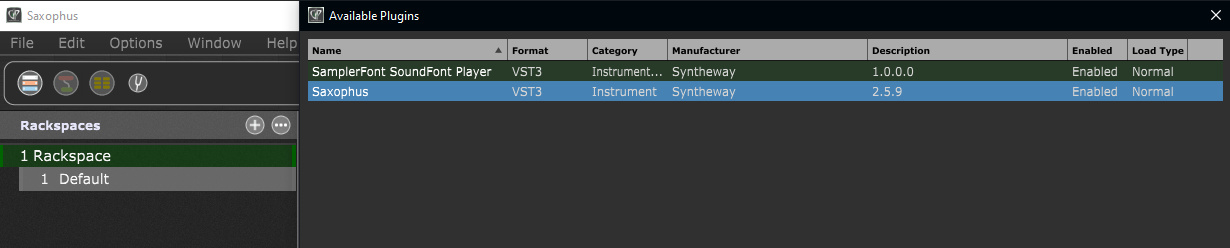
Try to Enable and select type
Normal options to be available on GP3.
Connect the Syntheway VST / VST3 / Audio Unit Plugin in
your GP3 rackspace of your .gig project as you usually do with your plugins
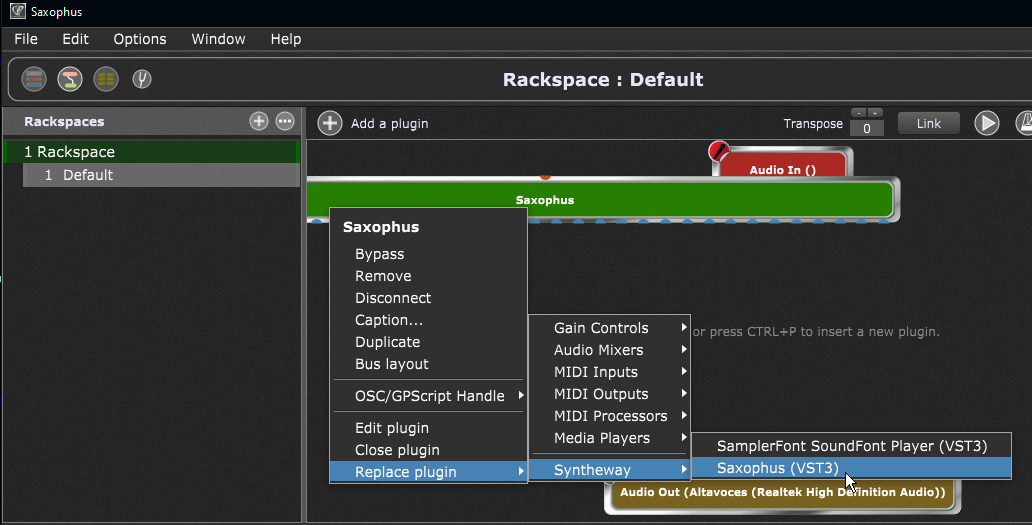
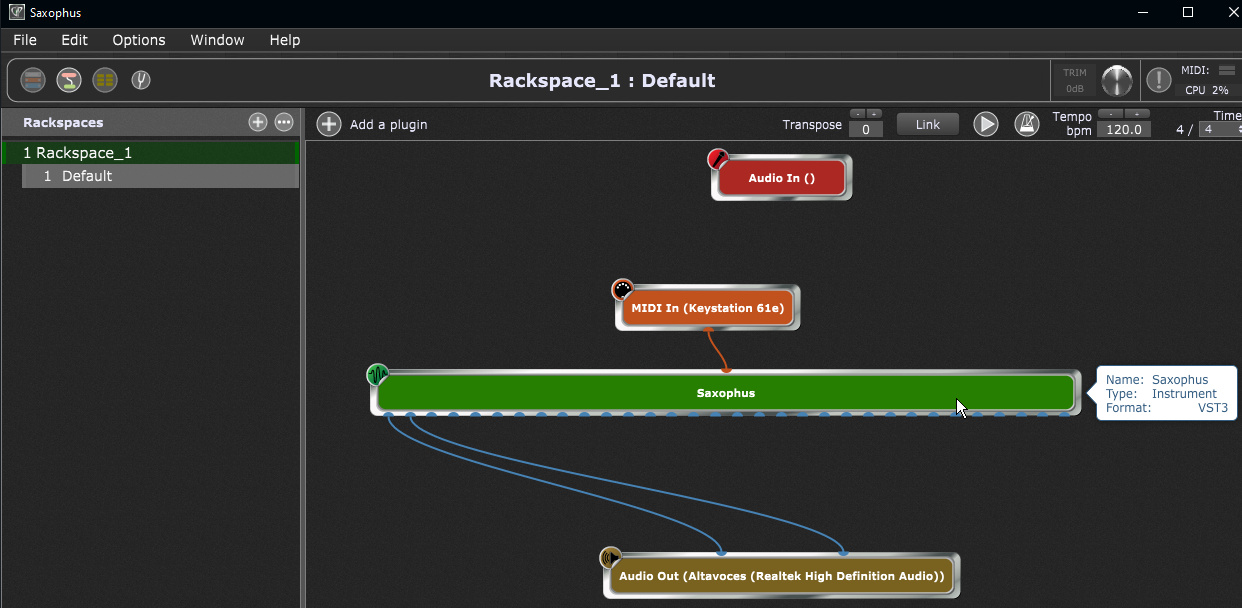
Assign your preferences in your rackspace
by connecting the USB MIDI Keyboard,
Syntheway VST / VST3 / Audio Unit Plugin, Outputs, etc.
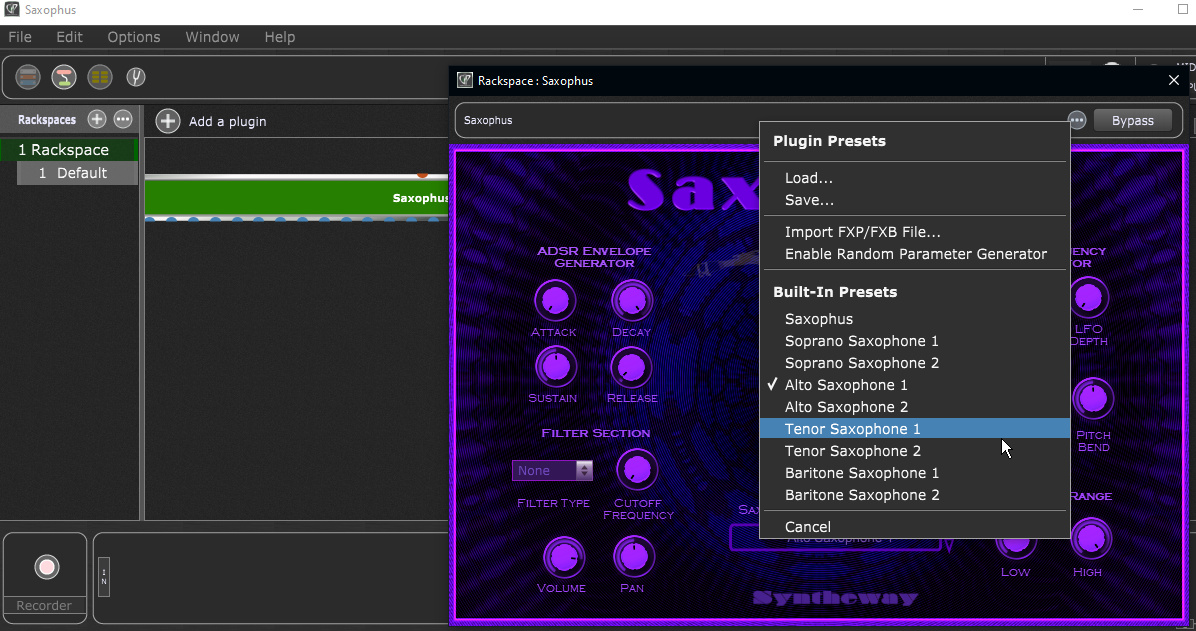
Select the Syntheway Presets from Gig
Performer from GP3 (...) icon or from Syntheway Pluguin Manager