|
|
| 
|
|
How to Compress (Zip) and Extract (Unzip)
a
File on Windows

You can zip (compress) a file so that it takes up less space. This makes it
easier to email or move the file. You can also zip multiple files into a
single compressed folder. This makes it easier to share a group of files. To
open a file that has been zipped, you need to unzip (extract) it first.
-
Open File Explorer by swiping in from the right
edge of the screen, tapping Search (or
if you're using a mouse, pointing to the upper-right corner of the
screen, moving the mouse pointer down, and then clicking Search),
enteringFile Explorer in
the search box, tapping or clicking Apps,
and then tapping or clicking File
Explorer.
-
Select the file or folder, tap or click the Share tab,
and then tap or click Zip.
-
A new compressed folder gets created in the same location with the same
name as the file. You can rename the compressed folder like you can any
other folder. Just select the folder, tap or click the Home tab,
and then tap or click Rename.
Notes
-
Warning: If you add encrypted files to a compressed folder, they
won't be encrypted after they’re extracted.
-
If you've already created a compressed folder and want to add new
files or folders to it, you can drag them to the compressed
folder.
-
Some types of files, like JPEG images, are already highly
compressed, so there's no need to compress them further.
-
If you’d like to have password protection or adjustable
compression features for compressed folders, you can search online
for file compression apps. Just be careful when you install file
compression apps from the Internet because they might change your
settings so that files don't open in the apps you want them to.
-
To compress files or folders from the Command Prompt window, you
can use the compact command. For info about using this command,
type compact
/help at a
command prompt.
To
unzip (extract) files or folders from a compressed folder
-
Open File Explorer by swiping in from the right
edge of the screen, tapping Search (or
if you're using a mouse, pointing to the upper-right corner of the
screen, moving the mouse pointer down, and then clicking Search),
enteringFile Explorer in
the search box, tapping or clicking Apps,
and then tapping or clicking File
Explorer.
-
To extract individual files or folders, open the compressed folder and
then drag the files or folders you want to extract to a new location.
-or-
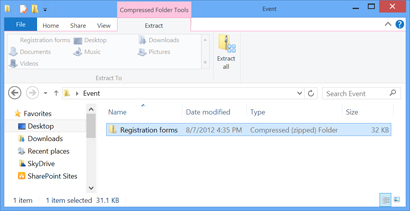
To extract everything in the compressed folder, tap or click the Compressed
Folder Tools tab, and
then tap or click Extract all.
Note
-
If you’re trying to extract everything in a compressed folder and
don’t see the Extract
all command,
select the compressed folder, tap or click the Home tab,
and tap or click Properties.
On the General tab,
next to Opens
with, make sure it says File
Explorer. If it doesn't, tap or click Change and
select File
Explorer. If you still don’t see theExtract
all command, the
.zip file association in the registry might be damaged. Search the Windows
support forumfor info about applying a registry fix.
| | |